
Automations
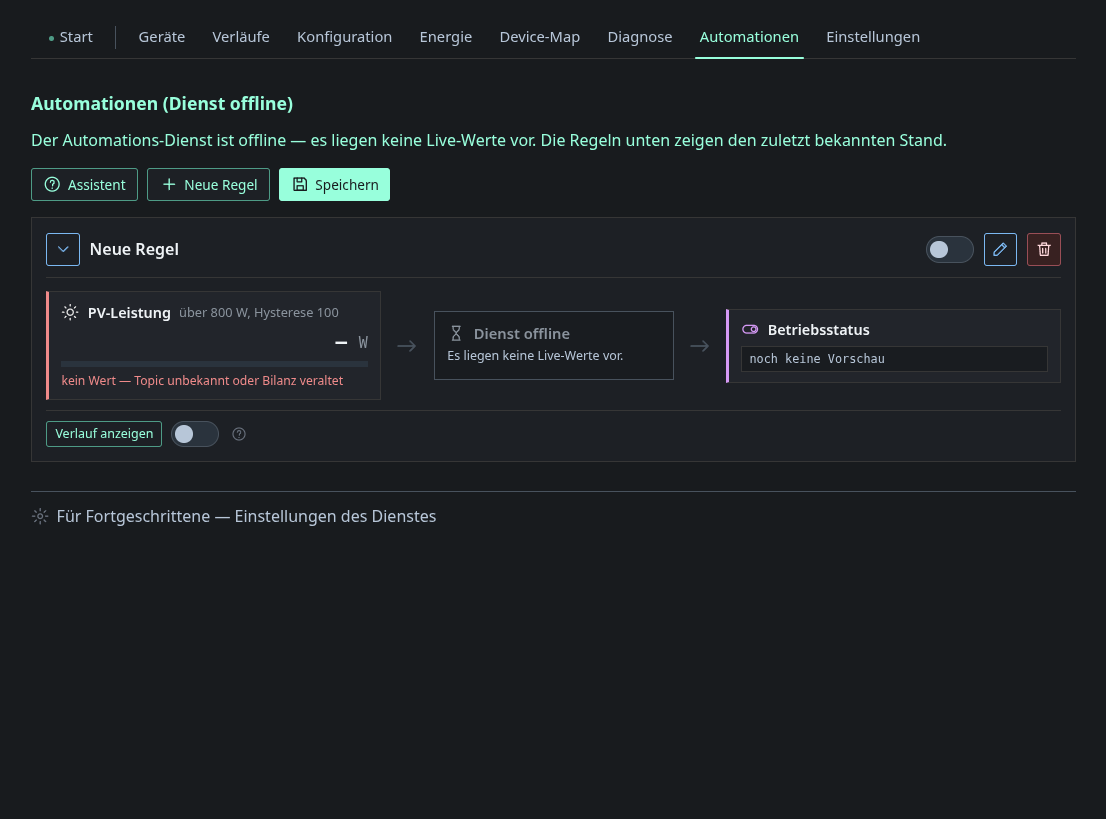
This page edits the rules of the separate automation_mqtt.py service. A rule
reads from left to right: conditions, then state, then actions. A condition can
be a threshold on a balance field (with hysteresis and hold time), a raw MQTT
topic value, a Home Assistant style entity template or a time window. An action
publishes to a topic or raises a notification.
Besides the built-in balance fields, a threshold can watch any custom category from the energy page. They are listed under Custom categories in the field selection. A rule whose category was removed shows it as an unknown category and its condition stays unmet until you pick another field.
The header shows whether the automation service is reachable. In the screenshot it is offline because the smoke test harness does not start it, so the rules are drawn from their saved state without live values. The dashboard never runs rules itself. It only edits the JSON, and the Python service evaluates the rules and publishes. See Device services → Automations.
The Assistant button walks you through building a rule. Show history lists the last triggers of one rule.
Reading a rule
The state between conditions and actions shows the rule’s current result, for example Waiting for hold time, Cooldown running or Energy balance stale. While a hold time or cooldown runs, the remaining time is shown below it, together with the last trigger and how often the rule has fired. How it works lists every result. When the service is offline, the state always reads Service offline, because none of the values can be trusted.
Each condition card shows one of four states:
| State | Meaning |
|---|---|
| no value | The topic has never carried a message, or the balance is stale. |
| threshold not reached | There is a value, but the condition is not met. |
| met, hold time left | The condition is met and waits for its hold time. |
| met | The condition is met and its hold time is over. |
The live values come from the automation service, which evaluates every
tick_interval_s (default 10 s). They show what the rule last computed with,
not the newest value the dashboard has elsewhere. The header says how long ago
the service last reported. When it is offline, the page shows the last known
state.
Saving
Save writes all rules and then waits up to 15 seconds for the service to confirm. applied means the new rules are running. rejected names the reason, and the service keeps running the previous rules. Service not responding means no answer came in time, usually because the service is offline. The rules are saved and take effect once it is back.
The rule file is also listed under Configuration, with its revisions and Restore. Use the raw JSON there if this page cannot express something.
Testing an action
Test now on an action runs exactly that action at once, without checking conditions, hold time or cooldown. For a publish action the dashboard first shows the topic and payload that would be sent and asks for confirmation. The result appears as a message: published, blocked with the reason, or failed.
- The test always uses the saved rule. With unsaved changes, save first.
- A test works on a disabled rule too.
- A test does not start the cooldown and does not count as a trigger.
publish_allowed_prefixesapplies to tests just as to real triggers.- The button needs the
automationsrole and a reachable service.
Rules that refer to entities
When you pick an entity, the editor copies its topic (and for conditions its value template) into the rule. The service works with that copy and never looks at the device registry. If the entity changes later, for example because a device was discovered again with a new topic, the editor shows a note with the current topic. Conditions offer Apply to take it over. Nothing is updated automatically, so a rule never points at a different device without you noticing. If the entity is no longer in the registry at all, the rule keeps running with the saved topic.