
Setup and options
This page assumes the integration is installed, see Energy Node Companion.
Set up
- Settings → Devices & Services → Add Integration → “Energy Node Companion”.
- Check the address. It is pre-filled from the node’s device link in Home
Assistant, for example
http://energy-node.tail1234.ts.net:8080. - Submit. The integration checks that the dashboard answers and speaks the same exchange version, then connects.
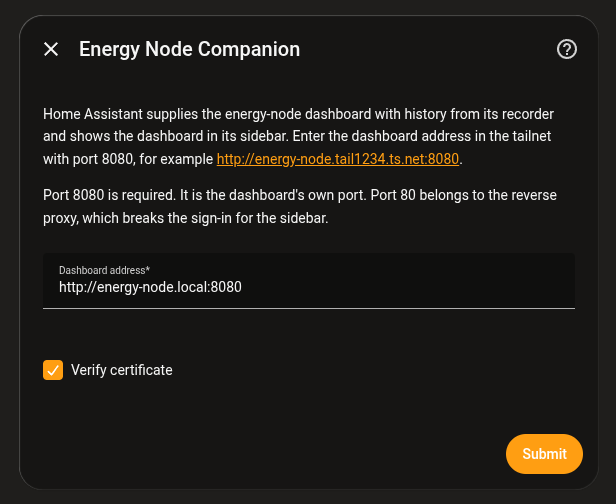
Use the dashboard’s own port (8080 by default), not port 80. The reverse
proxy on port 80 overwrites headers the integration relies on. If the
dashboard runs on another port, change it in the address field.
Leave Verify certificate on unless the address uses https:// with a
self-signed certificate.
To change the address later, open the integration and choose Reconfigure.
The address is only suggested when Home Assistant knows the MQTT device “Energy Node” and the node has a Tailscale name. Otherwise the field is empty and you enter the address by hand.
Options
Open the integration and choose Configure to change what it does. Saving reloads the integration.
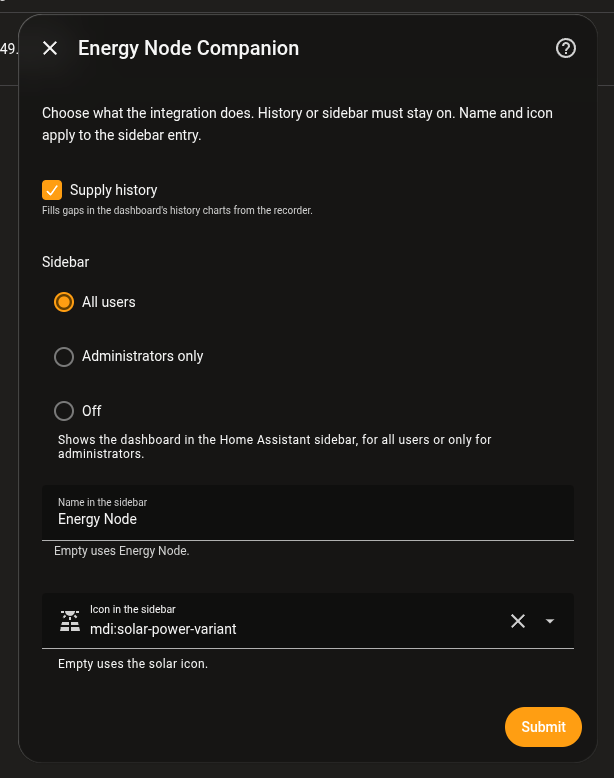
| Option | What it does | Default |
|---|---|---|
| Supply history | Fills gaps in the dashboard’s history charts from the recorder. See History backfill. | On |
| Sidebar | Shows the dashboard in the Home Assistant sidebar, for all users, only for administrators, or not at all. See Dashboard in the sidebar. | All users |
| Name in the sidebar | The label of the sidebar entry. | Energy Node |
| Icon in the sidebar | The icon of the sidebar entry. | mdi:solar-power-variant |
Clear the name or the icon to go back to the default.
History or the sidebar must stay on. With both off the integration would do nothing, so the form refuses to save.