
Layout editor
Edit on the overview turns the page into the editor. You arrange the cards on the real grid, the same one the overview uses afterwards, so a card has the size in the editor that it has when you close it again. Save & close keeps the layout, Discard changes drops it.
Moving, resizing and removing cards
Hover over a card in the editor and four buttons appear in its top corner:
| Button | What it does |
|---|---|
| Grip | drag it to move the card. A marker shows where it lands |
| Eye | hide the card without deleting it. A hidden card stays in the layout |
| ⋯ | open the options of the card |
| Bin | remove the card, without a confirmation. Discard changes or an earlier revision brings it back |
The handle in the lower right corner resizes the card. Its width is a size class from 1 to 6 or full, its height is optional (see below). A card never gets narrower than its minimum, which differs by type. The minimum widths are in Overview cards.
The number of columns follows the width of the window. A card that would not fit next to its neighbours takes a full row. On a phone everything is one column. In the editor, gaps in a row stay visible so you can see what you set. On the overview itself, the largest card in an incomplete row grows into the gap.
Adding blocks
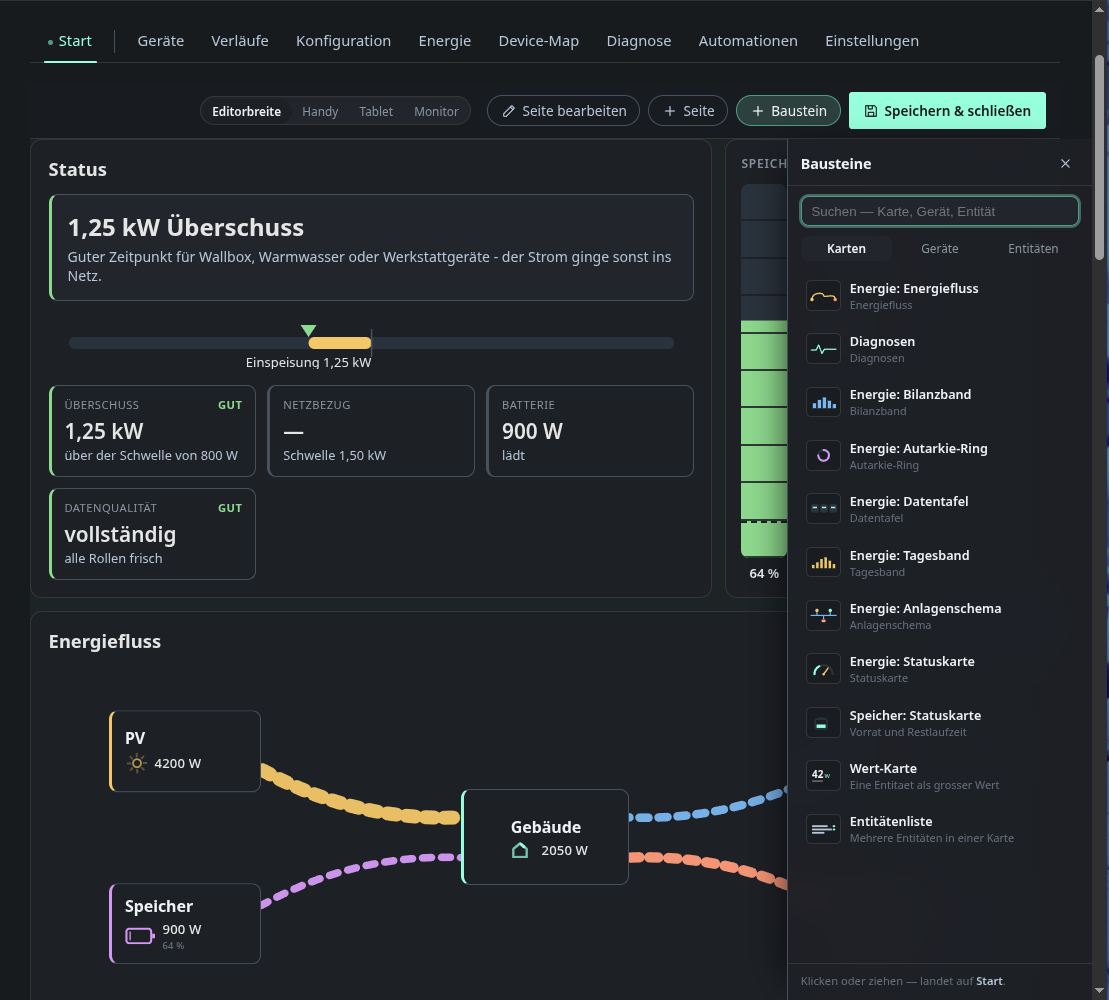
Block opens the panel on the right. It has three tabs and a search field:
- Cards are the computed cards, such as the energy cards, the value card, the entity list, diagnostics and the history chart.
- Devices has one entry per device.
- Entities has one entry per entity, which becomes a large value card.
Click a block to append it to the page, or drag it to the place you want. A new card shows a placeholder until you save, because the editor does not render the real card.
Card options
The ⋯ button opens the options of one card.
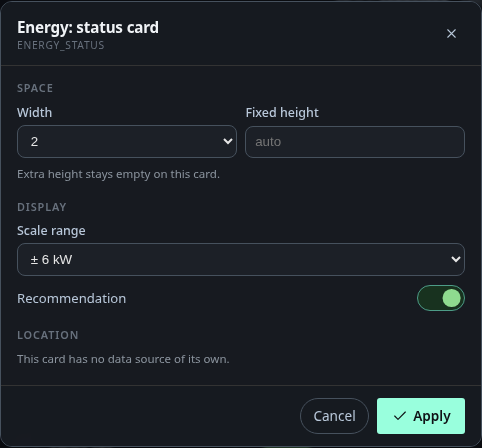
- Space sets the width and, for cards that can use more room, a fixed height. A fixed height acts as a minimum. A card that cannot use the extra height says so.
- Display holds the options of the card, such as the scale range of the status card. The full list is in Overview cards.
- Location picks the data source: the device of a device card, the entity of a value card, the entities of an entity list. A card without a source of its own says so.
A device card is shown in detail with all its entities, or compact with up to three values and a status dot, the same two views as on the Devices page. In compact mode you can choose which values the card shows, otherwise it picks them itself. The categories (Controls, Measurements and so on) only apply to the detail view.
Pages
Every layout page is a tab in the navigation. Page adds one, Edit page renames the active page, moves it forward or back, or deletes it. The last page cannot be deleted, because without it there would be no way back into the editor. Cards are added to the page that is active when you click.
Previewing other screens
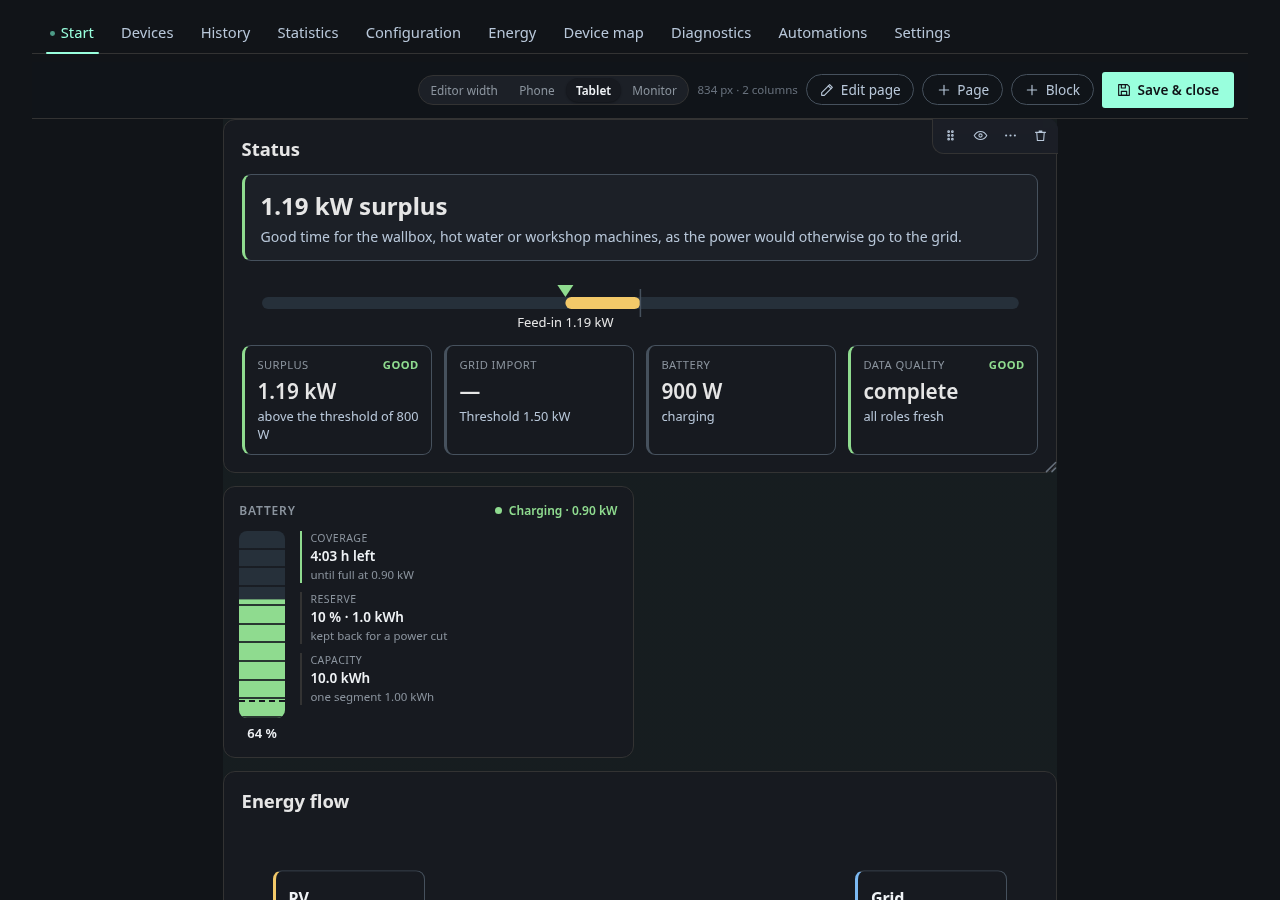
The Target width buttons show the layout at the width of a phone (390 px), a tablet (834 px) or a monitor (1280 px), and tell you how many columns that width has. Editor width goes back to the real width. The preview scales the page down and never up.
Saving and leaving
Changes stay in the editor until Save & close. The toolbar shows Unsaved while there are any. Switching to another tab or leaving the editor asks whether to keep editing or discard. Layouts are versioned, every save is a revision, and the revision list below the editor restores an earlier state.
Limits
- The column width is fixed at about 18 rem and cannot be changed.
- Above size 6 there is only full.
- Some cards, the energy flow and the energy graphics, exist only once per layout.
- Groups of cards are not visible on the overview. Only the order counts.
- The editor is made for a desktop. Dragging on a phone is not a goal.
- The editor needs the permission to edit the layout.