Device dialog
Every device opens the same dialog, whether you come from the device list, the overview, the diagnostics page or the device map. It shows one device: what it measures, what you can switch, and where it comes from.
Header and side column
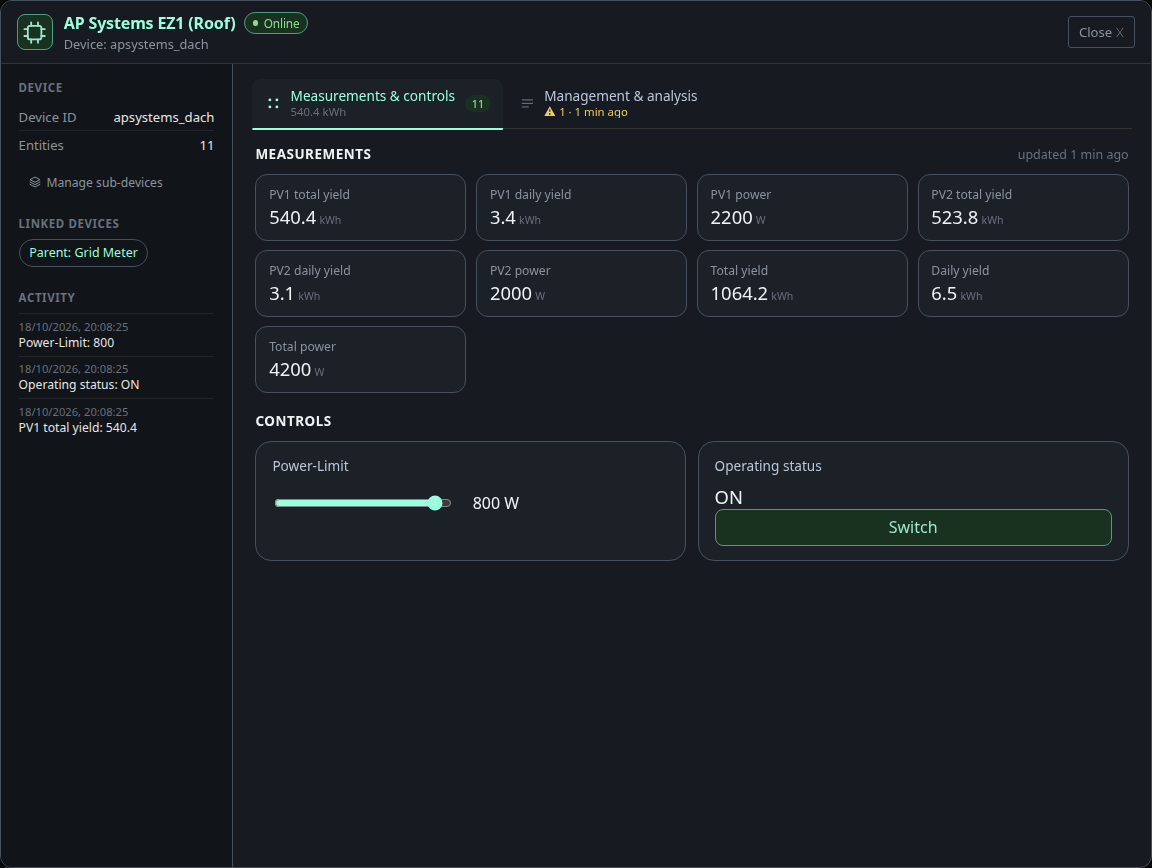
The header shows the device icon, its name, an online pill and manufacturer and model. The side column on the left holds the device ID, the number of entities, the devices it is linked to and the latest activity. A linked device is a chip: click it to jump to that device. Manage sub-devices appears for devices that measure power, see sub-devices.
Favourite values, if any are set, are pinned above the tabs so the numbers you care about are visible without opening anything.
Measurements and controls
Measurements are shown as tiles with value and unit. Values change live and count smoothly to the new number. A tile with a warning frame belongs to an entity that is stale or reports itself unavailable. updated … ago tells how fresh the data is.
Controls sit below, next to each other when there is room: a slider for numbers, a button for switches, a choice list for selections. Changing a control sends the command at once. Under the control you see whether the device confirmed it.
When the dialog is tall enough, measurements and controls share one tab. Otherwise they get a tab each. Tabs without any entity are not shown. Devices that expose configuration or diagnostic entities get a Configuration & diagnostics tab: configuration entities can be changed, diagnostic values are read-only.
Each tab carries a small counter with the number of entities inside.
Management and analysis
The last tab is for housekeeping:
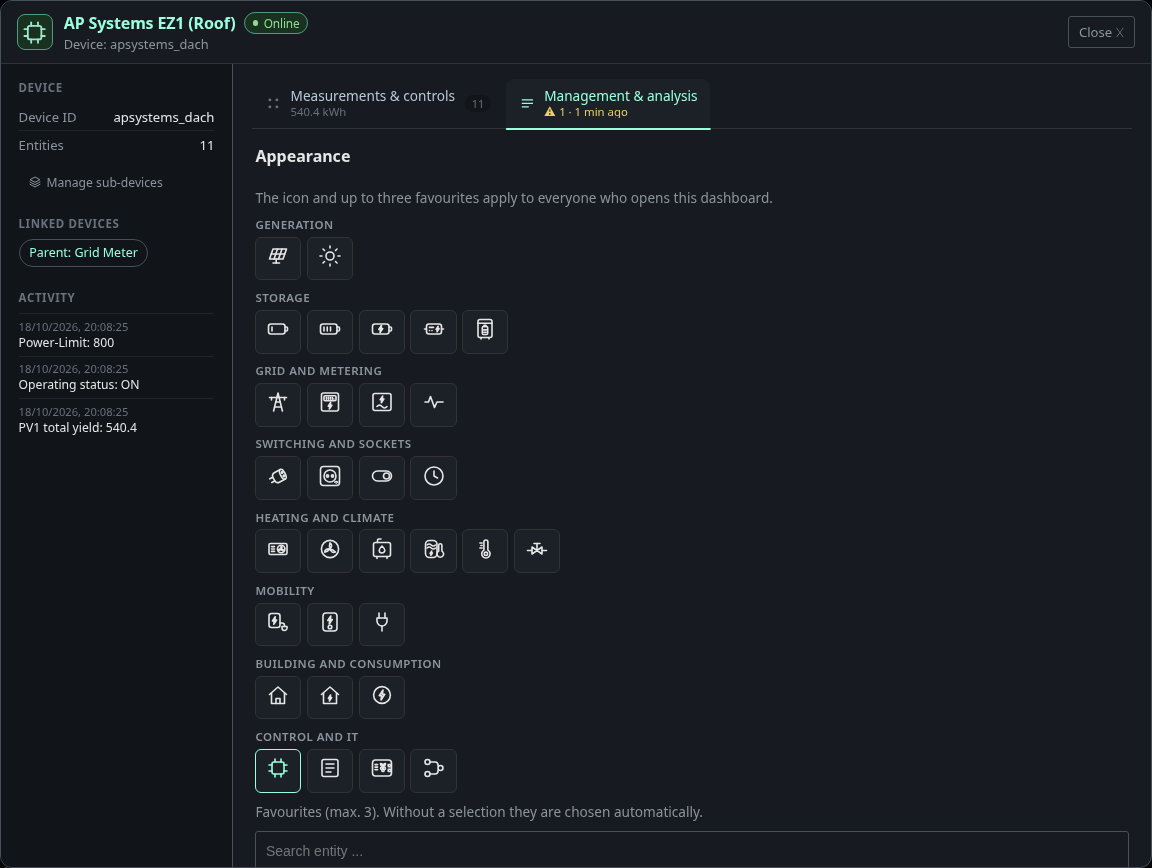
- Appearance sets the device icon and up to three favourites, and whether they are pinned to the top of the dialog. Without a choice, favourites are picked automatically. The settings apply to everyone who opens the dashboard, so they need the permission to edit the layout.
- Warnings explain what is wrong with the device, for example an entity that stopped reporting, with the affected entities and a hint.
- Latest MQTT messages, Discovery and Latest write actions show what the device sent, how it announced itself and which commands the dashboard sent to it. The discovery payload of each entity is one click away. This is the quickest way to find out why Home Assistant sees a device differently from the dashboard.
- Device management ignores the device, or removes its discovery. Ignoring is reversible, the device is listed under the ignored devices and can be reactivated there. Removing the discovery deletes the retained discovery topics from the broker. A confirmation first lists exactly what will be deleted and which configuration still refers to the device. Only administrators can do that.
On narrow screens
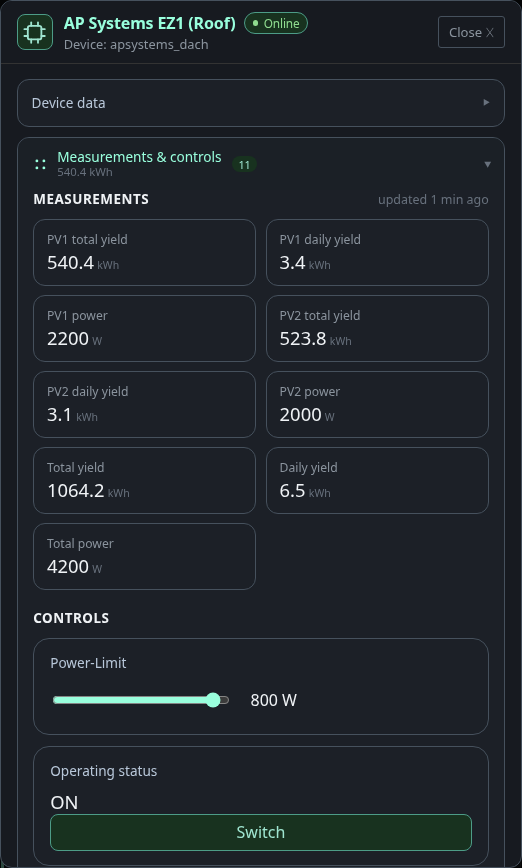
On a phone or in a narrow window the side column and the tab bar turn into one list of sections. One section is open at a time, the others stay collapsed with their entity count. The device data from the side column becomes the first section.