
Device map
The device map shows how the devices are wired, where the energy flows and which data flows between them. Its layers switch between the wiring, the live energy, the data flow and the roles. The map uses the same roles, groups and categories as the Energy tab, so a change on one tab shows up on the other right away. How to set roles, groups and categories is described on the Energy page.
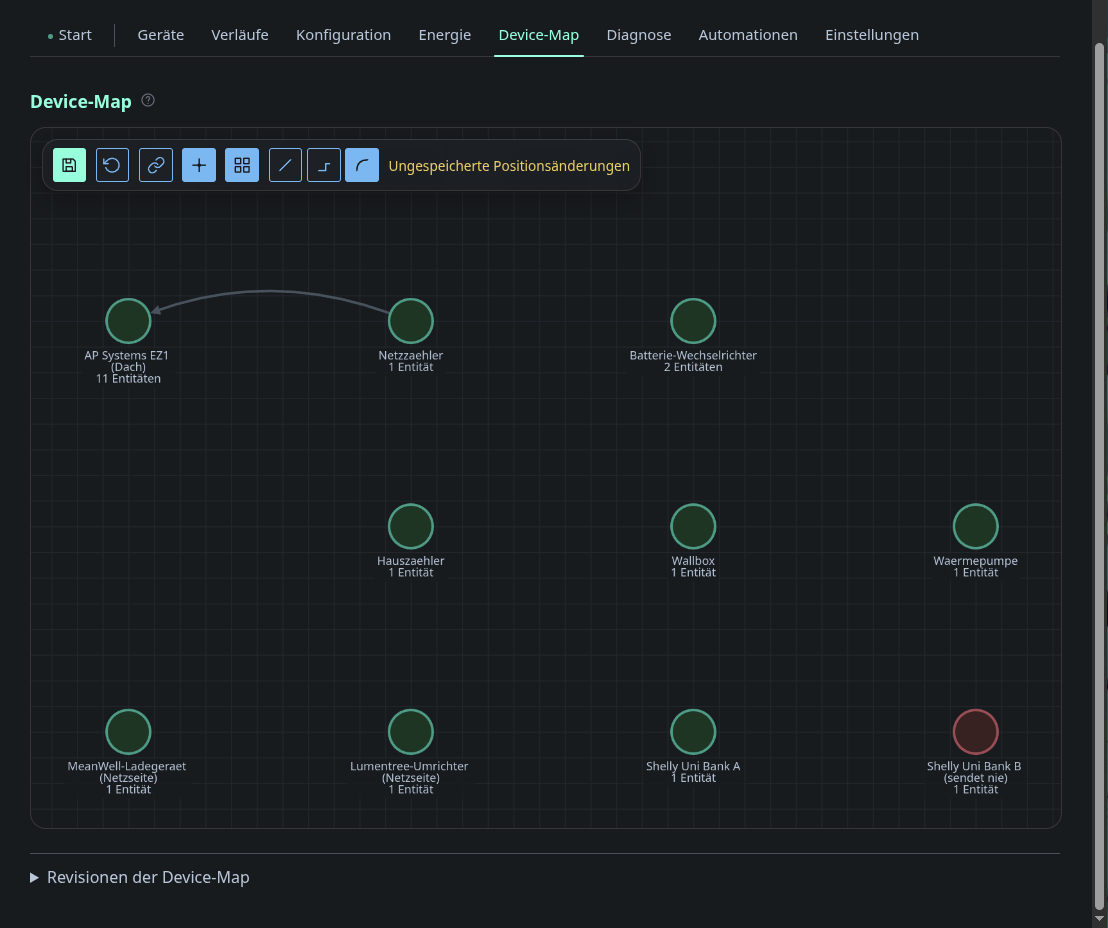
A free canvas with all devices. Place the nodes by hand and connect them to record how the site is wired, such as which meter feeds which sub-distribution. Positions, connections and layers are versioned, so an accidental drag can be rolled back.
How to read a node:
- Ring colour: the energy roles of the device, one segment per role.
- Solid ring: role assigned by you. Dashed: only detected. Grey dotted: no role.
- Dot top right: availability, green, amber, red or grey without data.
- Σ in a dashed circle: a group, its value is the sum of its members.
- Moving dashes: the live flow, faster for more power, with the value at the child end.
Layers and view
| Layer | Shows |
|---|---|
| Wiring | the connections between devices and groups |
| Live energy | roles, values and the moving flow |
| Data flow | topics between devices, services, automation rules and the balance conditions of automations |
| Roles | every device with an energy role, connected to the Energy Node |
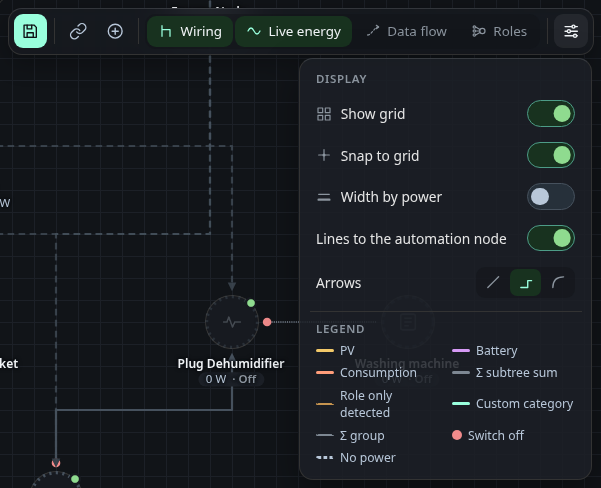
The view menu holds the grid, snap to grid, width by power, the line style and the legend. With reduced motion enabled in the system the lines stand still and carry an arrow.
Connection types
Click a connection to set what it stands for:
| Type | Meaning | Flow |
|---|---|---|
| Energy | an electrical line, such as inverter to battery | yes |
| Data | communication through a hub, gateway or service | no |
| Informational | a plain assignment, such as an accessory | no |
Until you choose, the map decides by itself: a connection between two devices that both measure power counts as energy, every other one as data. Such a detected type is marked in the card.
For an energy connection the flow direction is automatic by default, taken from the sign of the measurement. Reversed turns it round. Under Fixed direction the flow always runs toward one of the two ends, whatever the sign.
A connection you drew yourself can be reversed in the same card, which swaps parent and child. Connections that come from discovery and feeds into a group cannot be reversed, but their flow direction can still be set.
Device panel
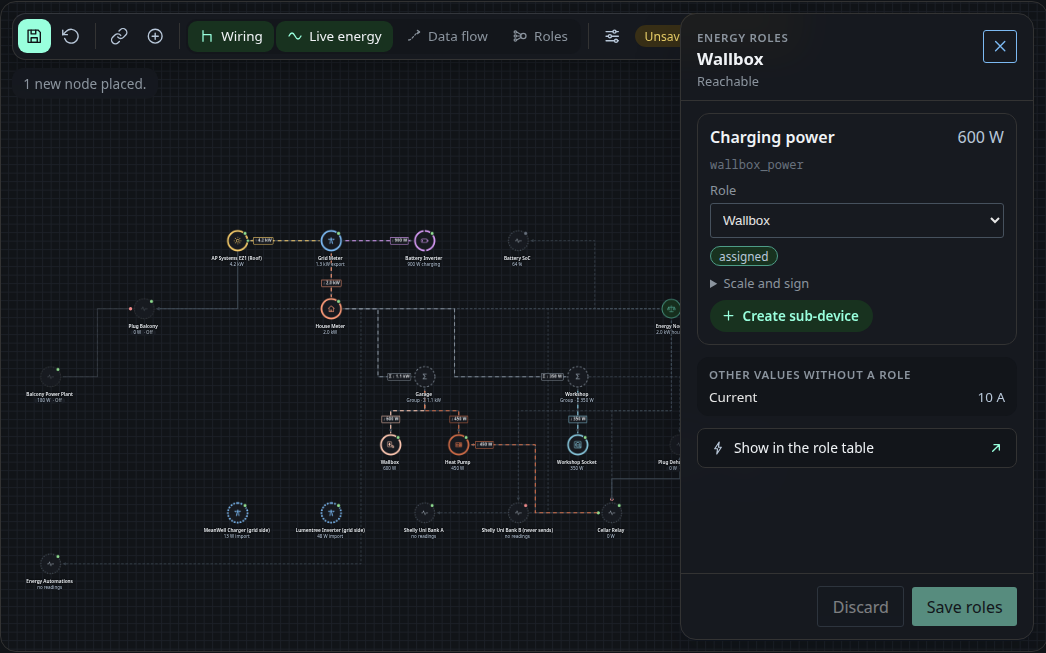
Click a device to see the roles of its measurements. A chip tells where each role comes from: detected, assigned or no role. Changes are drafts until you save, and the map already follows them. Show in the role table jumps to the Energy tab. Entities you hid in the role table on the Energy tab are not listed.
Group panel
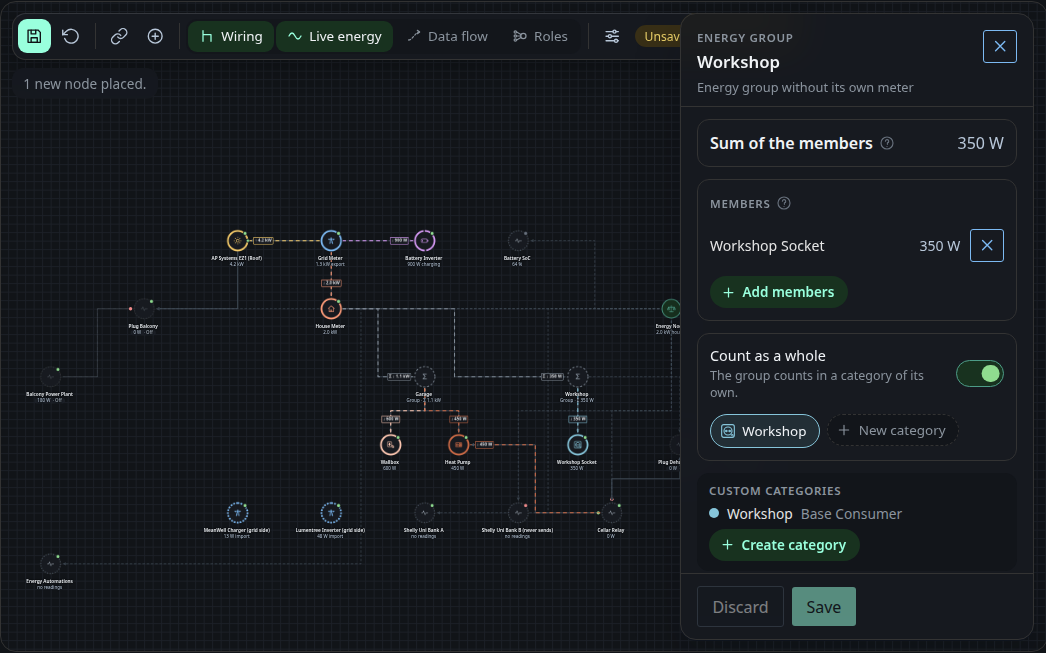
Click a group for its sum, its members and the count as a whole switch. Members are added with the picker or by hanging a device under the group in connect mode.
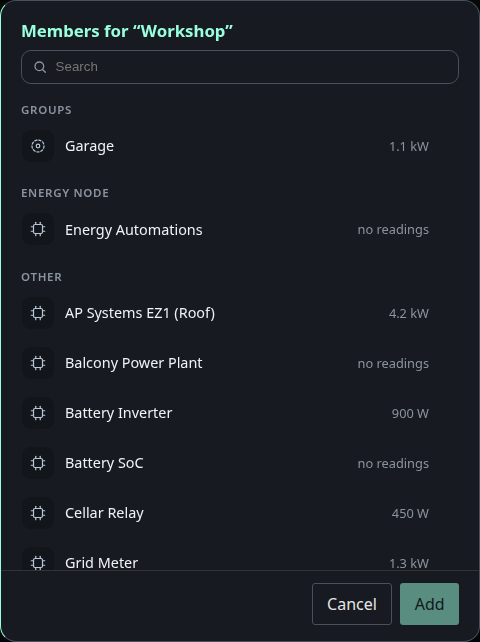
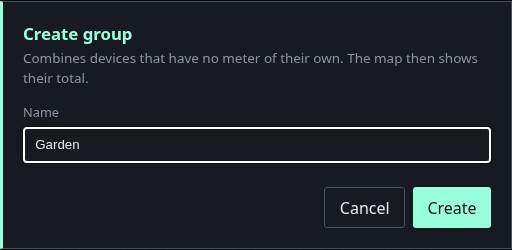
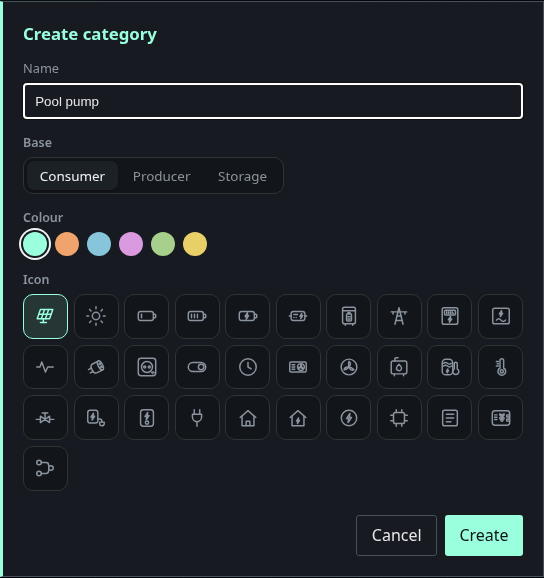
The plus in the toolbar creates a group. New category in a group creates a category and selects it for that group.
Data flow layer
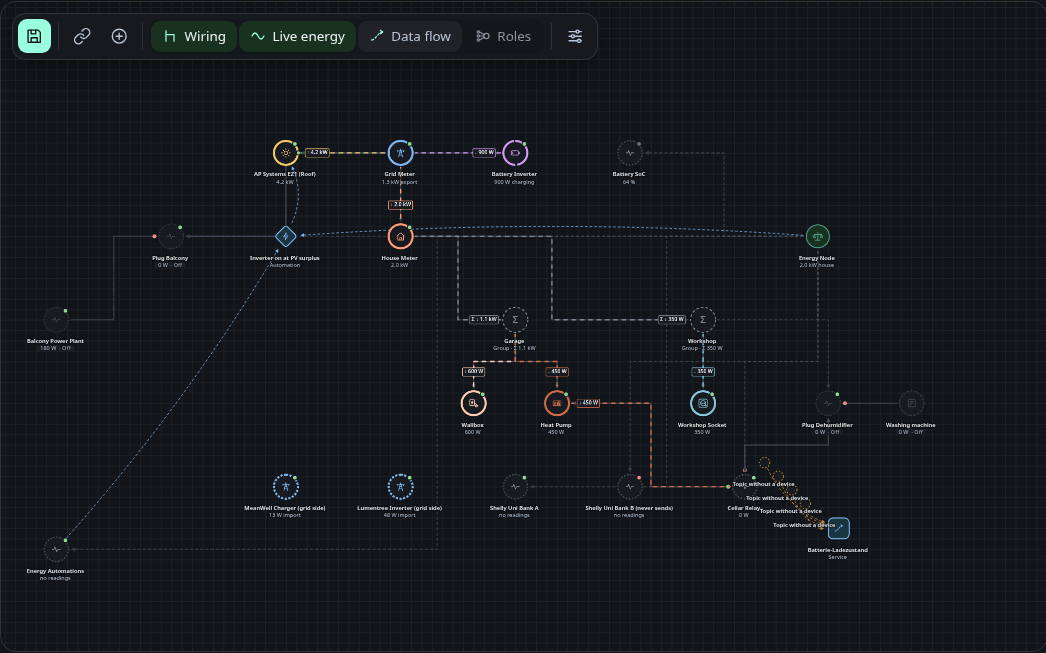
Topics as dashed edges from the producer to the receiver. Automation rules are diamonds, services are squares, and a topic nobody publishes is a stub labelled Topic without a device. Click an edge or a rule for its details and a link into the configuration or the Automations tab. How a service declares its topics is described in Data flows. The automations device sits under the Energy Node and connects to every rule it runs. A rule with an energy value condition gets an edge from the balance, so the value a rule compares against is visible here without the Roles layer.
Roles layer
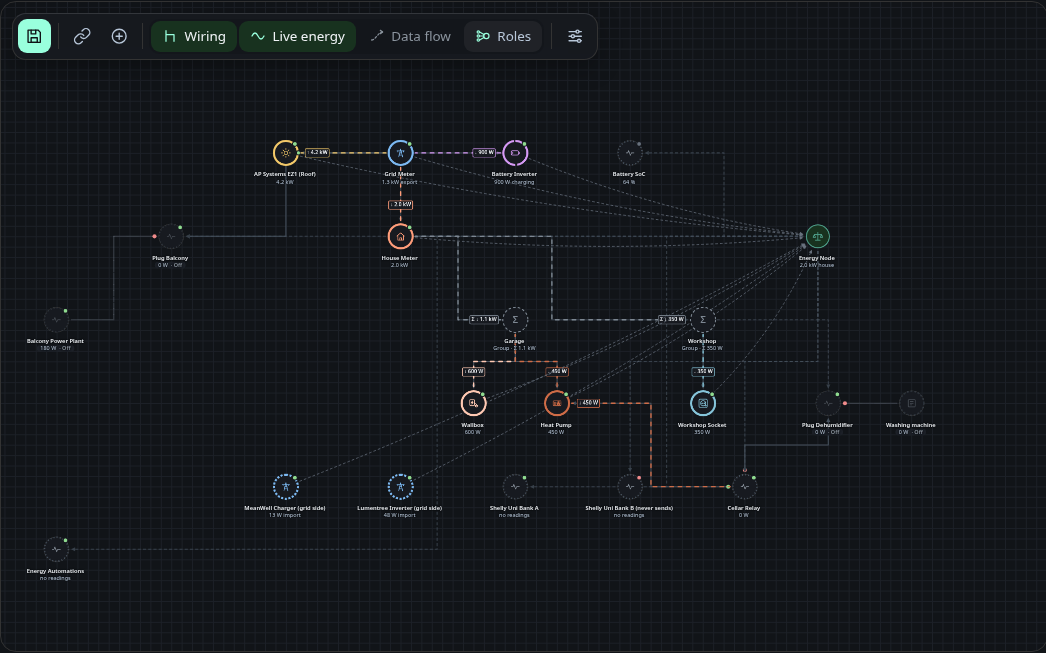
The Roles layer connects every device with an energy role to the Energy Node, in the colour of its role. The Energy Node is the balance itself, the device the dashboard publishes for Home Assistant, and it shows the net grid power. Without the Energy Node device, a separate balance node stands in for it.
Switchable devices
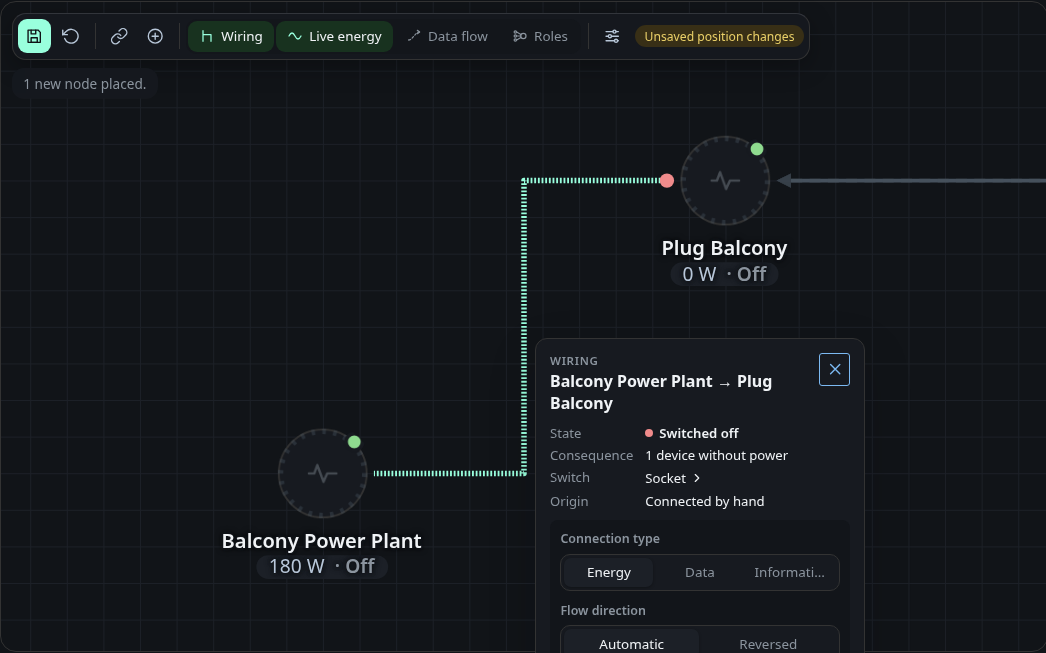
A smart plug or relay can switch its output off. The map shows this when the Wiring or the Live energy layer is on. Every connection that leaves a switched device carries a small filled circle where it starts: green when the switch is on, red when it is off and grey when the state is unknown. When the switch is off, everything that only gets its power through that connection is dimmed, its flow stops and its outgoing connections turn dotted. A device whose switches are all off also gets a grey pill with “Off”. A switch without an outgoing connection keeps its circle on the device itself.
The connection card leads with the state. For a cut connection it shows “Switched off”, the number of devices without power and the switch. Below a cut connection it shows “No power” and the cause, for example “Plug Balkon is off”, which links to the device.
A switch is an energy role called Switches. Set it in the device panel or in the energy configuration, like any other role. A device with several switches, such as a two channel relay, gets a channel for each of them. Open the card of an energy connection and choose the channel it hangs on. Without a choice the connection uses channel 1. The channel field only appears for devices with more than one switch.
The map suggests the role for a device that has exactly one switch entity, where the switch can be commanded, is not a configuration or diagnostic entity and the device has a power entity in W or kW. The suggestion is marked “detected” until you save a role. A device that is off is never itself shown as without power, even if another switched-off device feeds it.
The map only shows the state. To switch a device, use the Devices tab. The link in the device panel opens it.
Sub-devices
A sub-device gives a consumer its own name and icon when the consumer has no connection of its own, such as a washing machine behind a plug. It hangs on one power measurement of a real device. On the map it gets a node of its own, and the measuring device becomes the plain link in front of it. The sub-device changes only the name and the icon. Values, roles, groups and the balance stay on the measurement, and the sub-device is not sent to Home Assistant.
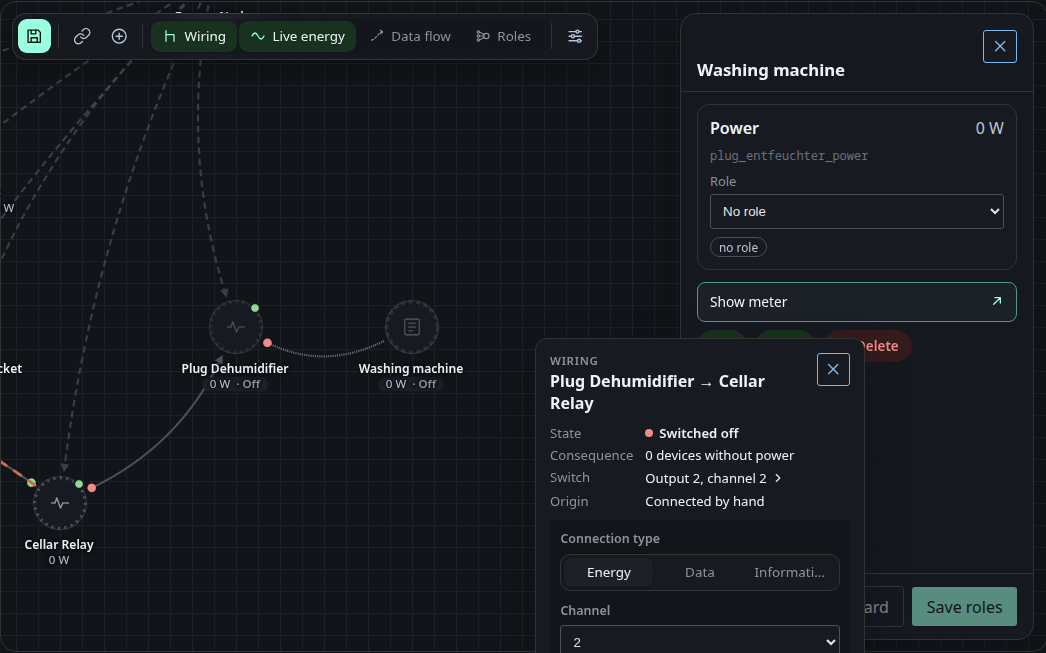
Each power measurement carries at most one sub-device. A device with several power measurements, such as a two channel plug, can carry one sub-device per channel. The measurement must report its power in W or kW.
Manage sub-devices in the device panel of the measuring device or of the sub-device itself, or in the device dialog on the Devices tab. A sub-device can be renamed, given another icon, moved to another power measurement and deleted. Moving keeps its name, icon and position on the map. Deleting a sub-device only removes the name, and the measurement reappears under its own name.
The energy connection from the measuring device to the sub-device is fixed. It cannot be deleted or reversed, but its channel can be chosen like the channel of any other energy connection. A sub-device has no further connections.
Permissions
Changing the map, meaning the positions, the connections, the connection types
and the groups, needs the permission edit_energy, the same permission as
changing roles. Until there is a user management every account has it, guests
included.