
Settings: Versions & updates
The tab Versions under Settings and the update of the node from the dashboard.
Versions
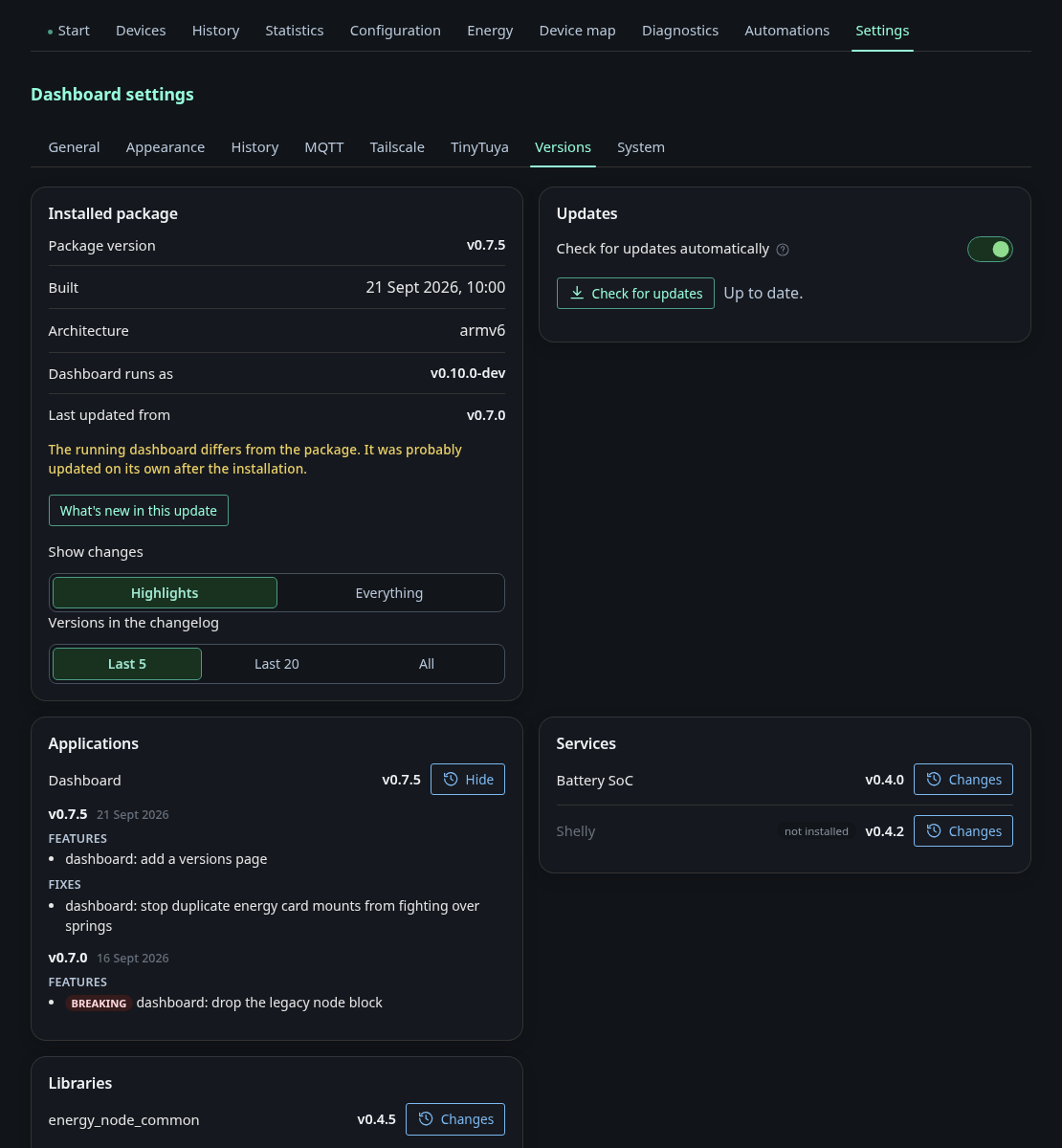
This tab shows what is installed on the node. The top card shows the installed package with its version, build date and architecture, and the version the dashboard itself runs as. When the dashboard was updated on its own after the installation, the two differ and the page points that out. Below that every application, service and library is listed with its version. Changes opens its changelog. A service that is not installed is marked as such. The switch in the package card chooses between the Highlights of each release and Everything, which includes every commit. In the What’s new dialog, a highlight with details has a More link that opens its explanation, its image and a link to the guide.
The setting Versions in the changelog chooses how many bundle versions the changelog shows. Last 5 is the default and shows the five newest versions. Last 20 shows the twenty newest, which is the most a bundle carries. All shows every version the node has received, including the older ones it kept from earlier updates.
The Updates card checks GitHub for a newer release when you click Check for updates.
Updating from the dashboard
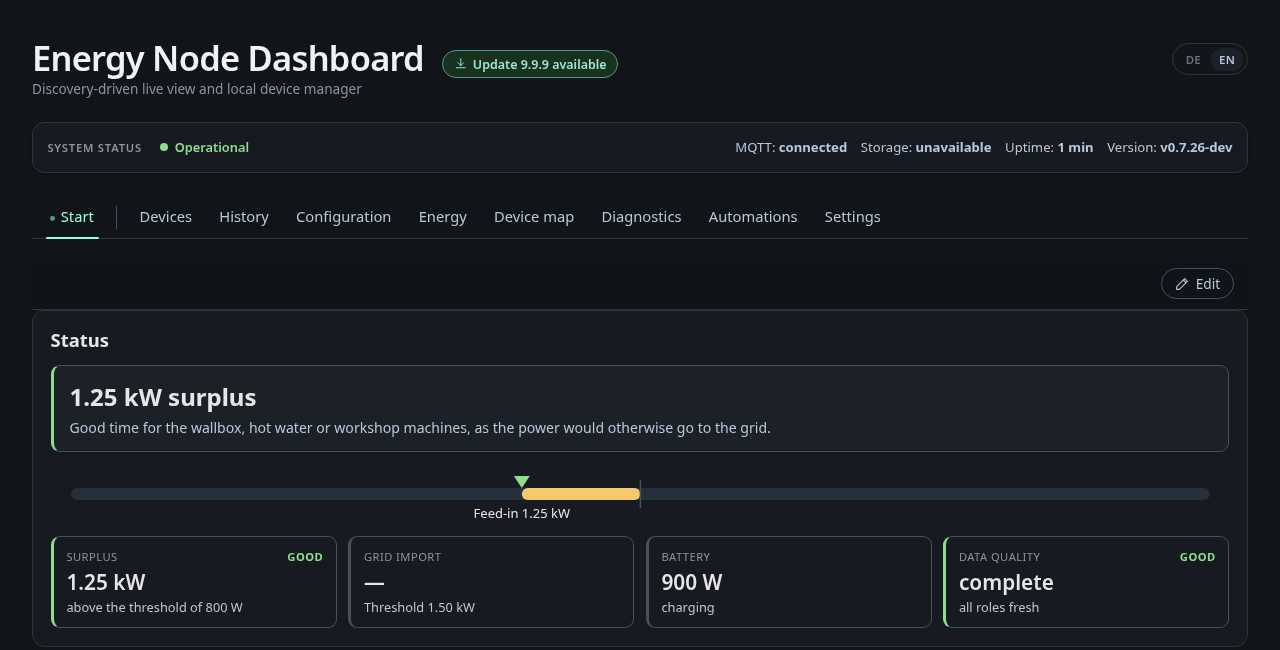
When a newer release is out on GitHub, the header shows a notice next to the
title (Update … available). The same notice appears under
Settings → Versions, next to Check for updates and the link
Release notes on GitHub. For a registered user with the system_actions
role the notice opens the update page (/redeploy/). Everyone else gets the
release notes on GitHub in a new tab.
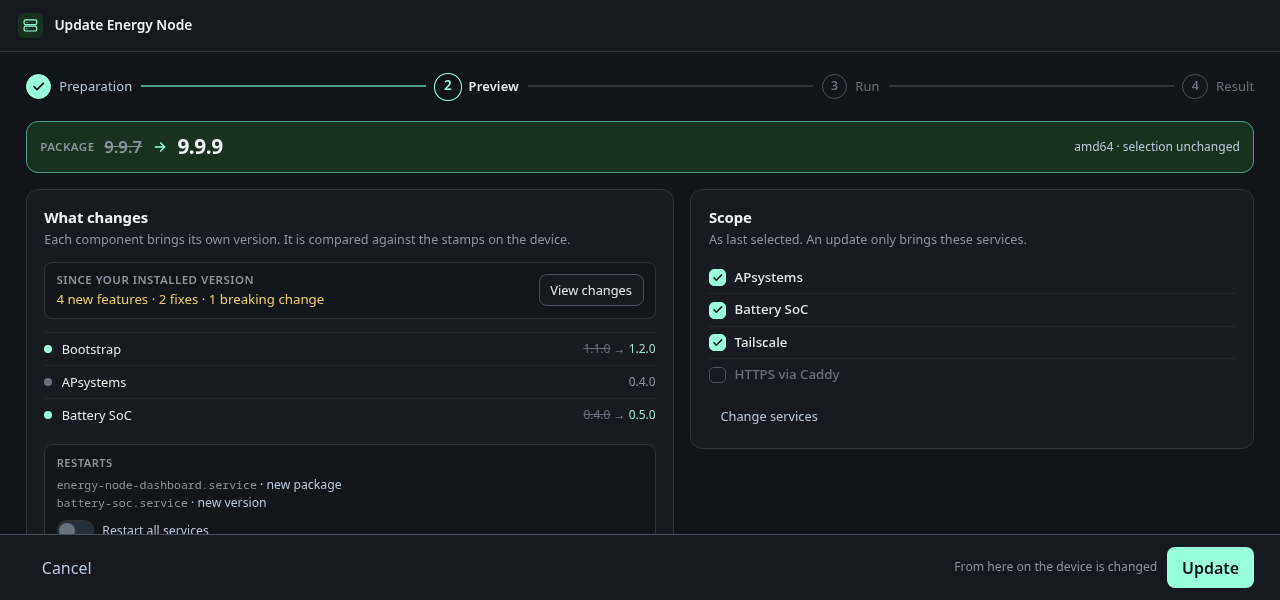
The update page first downloads the newest signed release package for the node’s architecture. View changes lists what the new package changes. The page shows the same preview as the desktop installer: which components change, which services restart and which services the node runs. Update runs the pending steps on the node itself, without the installer and without SSH.