
First-time setup
The first time an admin signs in, the dashboard starts a guided setup. It goes through the settings that matter most in four areas: Access, Display, System and Devices. You can finish it in one go or leave any step for later.
How the setup works
The setup runs in the dashboard itself. A bar at the bottom of the screen names the current step. A spotlight marks the control that the step is about, so you can change it right where it is. The bar has three buttons:
- Next goes to the next step.
- Later leaves the step as it is and marks it for later.
- Skip setup ends the setup. The open steps stay in the checklist.
The spotlight follows the control when the layout around it shifts.
The steps
| Area | Steps |
|---|---|
| Access and users | Add more users, Guest access, Access on the go (only when Tailscale is installed), Pair Home Assistant users |
| Display | Colour scheme, Title and subtitle, System status, Tab width, Overview tiles |
| System | Check for updates, System metrics |
| Devices and energy roles | Choose a service, Set up devices, Check devices, Assign energy roles, Device map, Automations (only when the automation service is installed) |
The Tailscale step only appears when the Tailscale service is installed on the node.
Steps that are already done
A step on an existing install is checked off when its setting differs from the default. For example, a changed colour scheme, a changed tab width or a second account without admin rights counts as done. Steps that are not set up yet stay open.
Choose a service, Set up devices, Check devices, Device map and Overview tiles are never checked off automatically. You decide when they are done. Language is offered on the welcome screen, and favourites are explained in the update highlights, so the setup no longer asks for them.
Who sees the setup
- Admins run the setup.
- Guests see a note that the dashboard is not set up yet. The note stays until an admin has finished the setup. Until then, devices and energy values are missing for guests.
- Other users never see the setup.
Setting a step for later
Press Later to leave a step for later. It stays open in the checklist, where you can come back to it at any time. Open steps block nothing. The dashboard works without them.
Repeat the setup
The checklist is under Settings. Use Go through it again there to repeat the tour. The checklist also lists the new features of each version. Those with a tour can be shown again from there.
Tours of new features
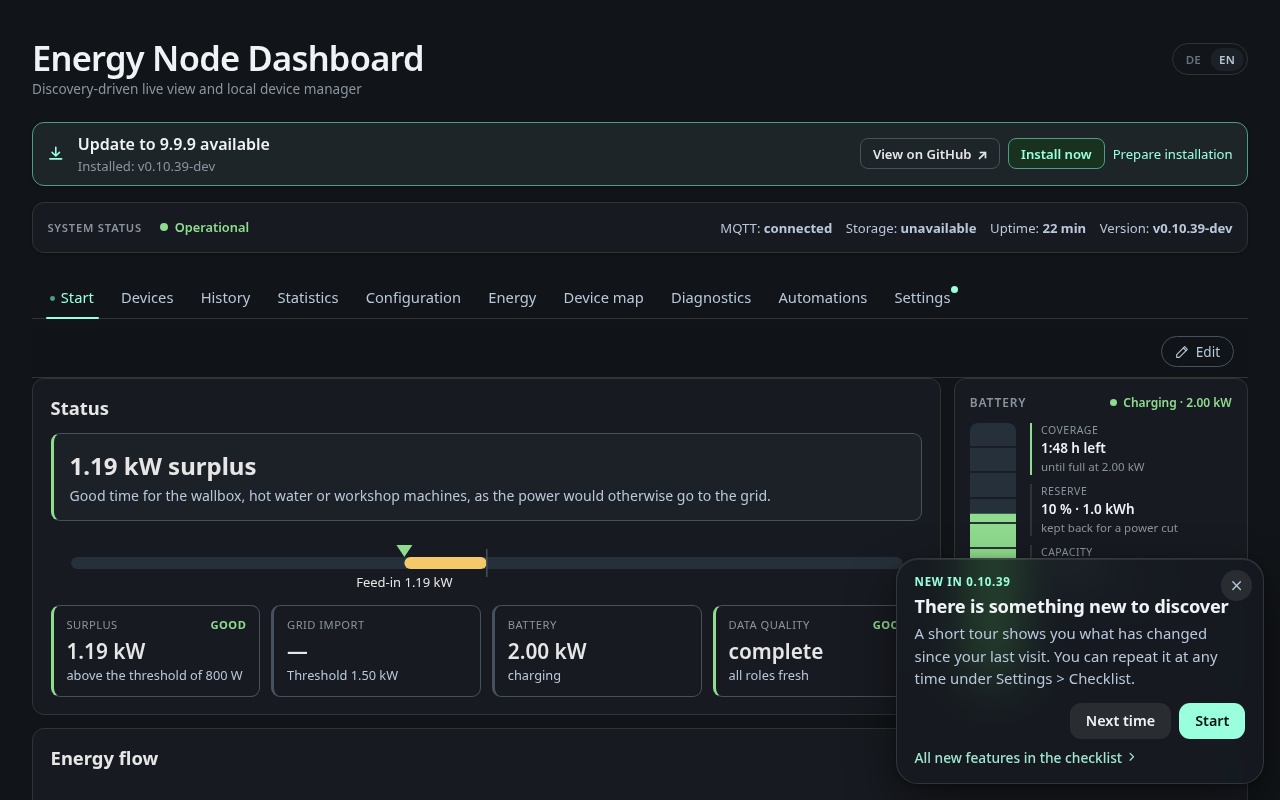
After an update the dashboard offers a short tour of what has changed since your last visit. Start begins it. Next time closes the offer until more new features arrive, and the tours stay in the checklist. A tour works like the setup: the bar at the bottom names the step, and the spotlight marks the new control. Steps you have no permission for are left out.
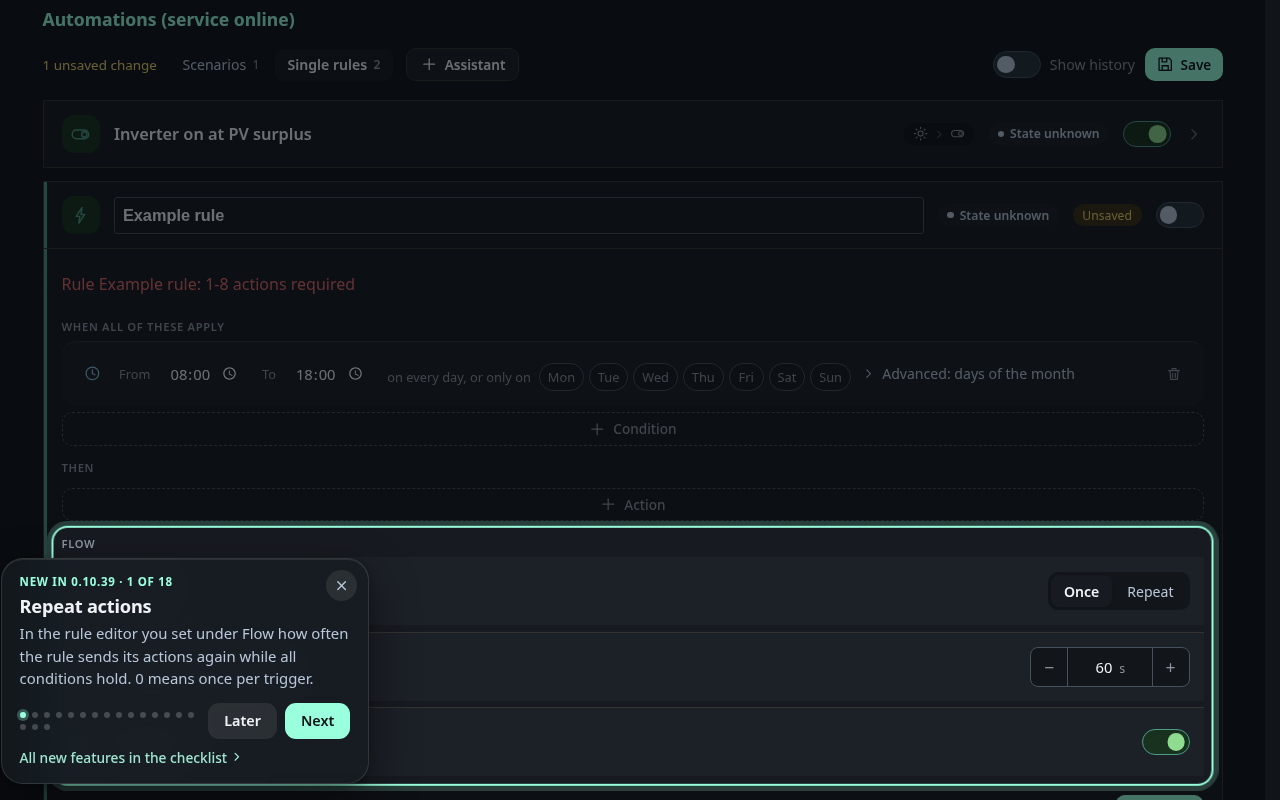
Under Settings, Checklist, Explore what’s new lists the highlights of the last three versions. Start tour shows the ones you have not seen yet, and every tour can be replayed. Explore further back opens the earlier versions since v0.8.0.