
Settings: Users
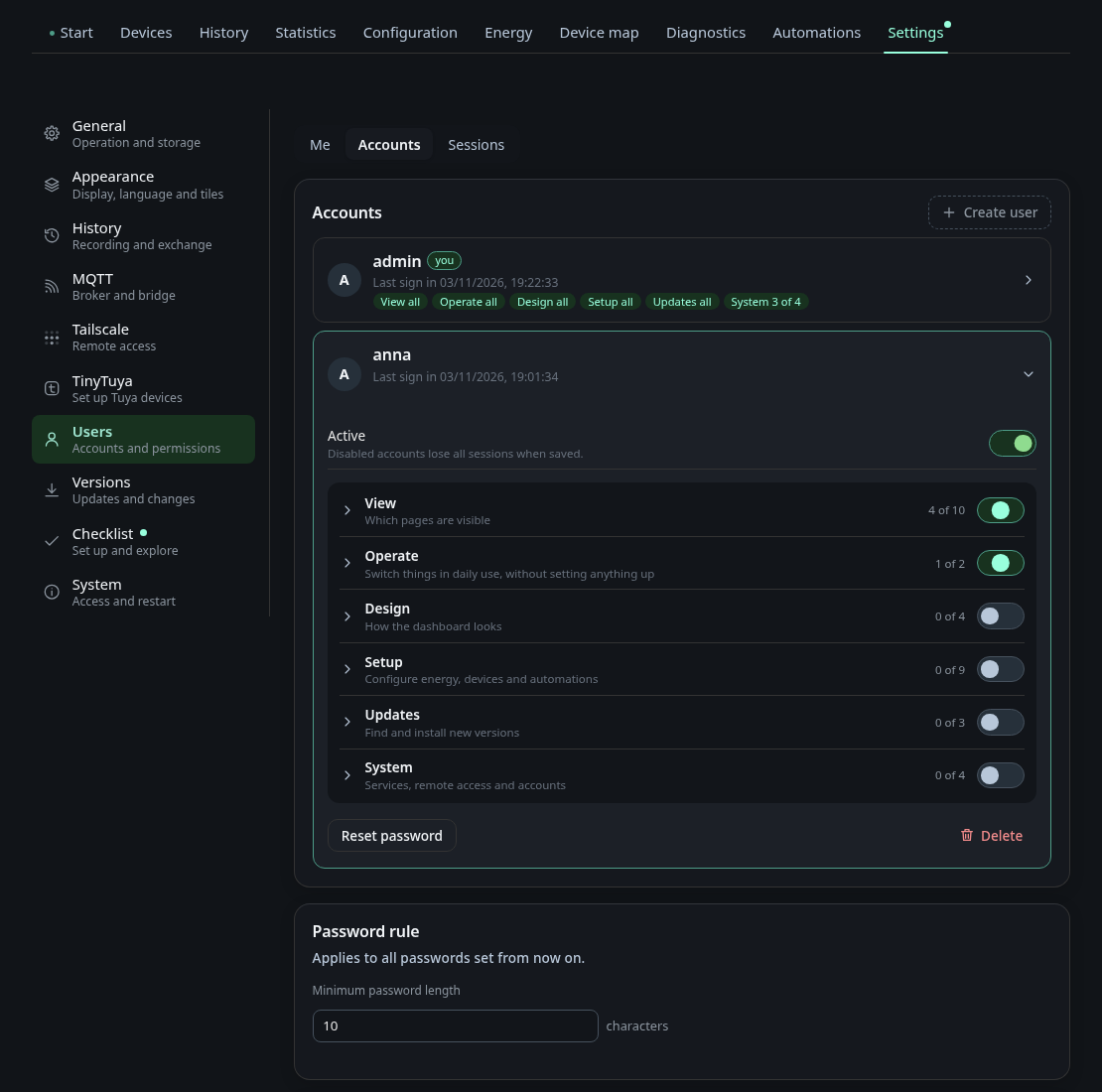
The page Users under Settings manages who may sign in and what each
account may do. It has three tabs: Me, Accounts and Sessions.
Everyone sees Me. The other two tabs need the permission
user_management and an HTTPS connection.
Me
Me shows who you are signed in as and holds Sign out. A local account changes its password here with the current password and the new one twice. Over HTTP the tab says that some permissions only apply over HTTPS, see Signing in over HTTP. An account that signed in through Home Assistant changes its password in Home Assistant.
Accounts
Create user adds a local account with a user name and an initial password. A user name has 3 to 32 characters: a to z, digits, dot, underscore and hyphen. Each account is a card. Open it to change its permissions, reset its password, switch it off with Active or delete it. Changes are only kept after Save, and an open card with changes is marked unsaved.
- Switching Active off disables the account and keeps its permissions. All its sessions end when you save.
- Delete removes the account and its permissions for good, and its sessions end at once.
- Reset password sets a new password and ends all sessions of the account.
Your own account cannot be disabled. The last active local account with
user_management keeps that permission and cannot be disabled either, so
there is always someone who can manage accounts.
Password rule
Minimum password length applies to every password set from now on, for accounts and for HTTP passwords. It is between 8 and 64 characters, the default is 10. Existing passwords stay valid.
Permissions
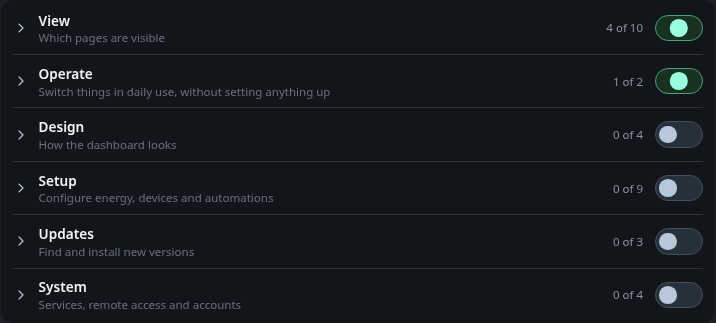
Permissions are grouped in six categories. A switch next to a category turns the whole group on or off.
| Category | What it allows |
|---|---|
| View | which pages are visible: Overview, Devices, Device analysis, History, Statistics, Energy, Device map, Configuration, Automations, Diagnostics |
| Operate | switch devices and set values, turn rules and scenarios on and off |
| Design | arrange the overview, style devices (icon and favourites), default view of the device map, change the appearance |
| Setup | edit automations, energy assignment, edit device map, edit device configuration, ignore and remove devices from discovery, MQTT connection, set up the dashboard, set up TinyTuya, set up Tailscale |
| Updates | check for updates, install the offered update, change update settings |
| System | read service logs, services and bridge, user management, sign in over HTTP |
Many permissions need a view permission first. Switch devices needs the page Devices, Edit automations needs the page Automations. Without the view permission the switch is locked and names the page it needs.
Change the appearance covers the theme, view, number format, tiles and the title. Set up the dashboard covers live updates, diagnostics, history recording, energy statistics and the update check. Accounts from before the split kept what they were allowed to do.
An account without any view permission sees only a notice and its own account.
Elevated rights
Some permissions are tagged Elevated: MQTT connection, set up TinyTuya, set up Tailscale, change update settings, services and bridge, and user management. They allow restarting or updating the system, managing users and changing the MQTT connection or Tailscale. Saving an account that gets one of them asks for confirmation first.
The elevated rights and Read service logs are tagged HTTPS only. They apply only in a session that signed in over HTTPS.
Presets
Presets are the permissions for accounts that have no list of their own. There are three:
| Preset | Applies to | Default |
|---|---|---|
| Guest access | everyone who chooses Continue as guest | view only: Overview, Devices, History, Statistics, Energy, Device map |
| HA administrators | Home Assistant administrators who sign in through the companion | every permission that is not elevated |
| HA users | all other Home Assistant users | view every page, operate, design and check for updates, no setup |
A guest can never get an elevated permission, Read service logs, Install the offered update or Sign in over HTTP. After an update from an older version the page says that guests can now only view by default. Check the guest preset once to dismiss the note.
Guest access
The guest card holds the switch Allow guest access. With guest access on, the sign-in page offers Continue as guest, and the guest gets the guest preset. A guest session lasts seven days, and a guest that has not come back for seven days is removed.
Switch guest access off and the sign-in page no longer offers it. Running guest sessions end at once.
Home Assistant users
Home Assistant users sign in through the Energy Node Companion. The panel in Home Assistant then shows the dashboard as the Home Assistant user who opened it. The section Home Assistant on the Accounts tab pairs the companion with the dashboard:
- Create pairing code shows a code with 12 characters. It is valid for 10 minutes and works once.
- In Home Assistant open the Energy Node Companion integration, choose Configure and enter the code. The details, including the companion port 8081, are in Setup and options.
- The section shows paired with the date and the last connection.
Every Home Assistant user who signs in gets a card tagged Home Assistant. It follows the preset HA administrators or HA users. Set permissions individually gives the account its own list. Its password is changed in Home Assistant, the dashboard rejects a password change for it. If a local account has the same name, the card is tagged Name taken and the account works only through the panel in Home Assistant.
Deleting a Home Assistant account removes only the entry. When the user signs in again, the account is created anew with the preset. Disable it to keep someone out. Unpair ends all sessions of Home Assistant accounts. Local accounts stay signed in, and pairing again needs a new code.
Sessions
The tab Sessions lists every signed-in session with its account, whether it came over HTTP and when it expires. This session marks your own. End signs a session out right away.
Signing in over HTTP
Over HTTPS every account signs in with its password and gets all its
permissions. Over plain HTTP only accounts with the permission Sign in over
HTTP (http_login) can sign in, and they get a restricted session: the
permissions tagged HTTPS only are left out of it. The card of such an
account is tagged restricted over HTTP and lists what is left out.
Over HTTP the password travels unencrypted. Anyone who reads it can sign in over HTTPS with all permissions. Set HTTP password gives the account a second password for HTTP. Signing in with it always gives the restricted session, even over HTTPS, and the main password never travels over HTTP.
Every restricted sign-in is written to the dashboard log as
auth: <name> login restricted, which
Service logs shows.
See also
- The window frame: what the sign-in page offers
- Secrets: where the password files live
- Dashboard in the Home Assistant sidebar